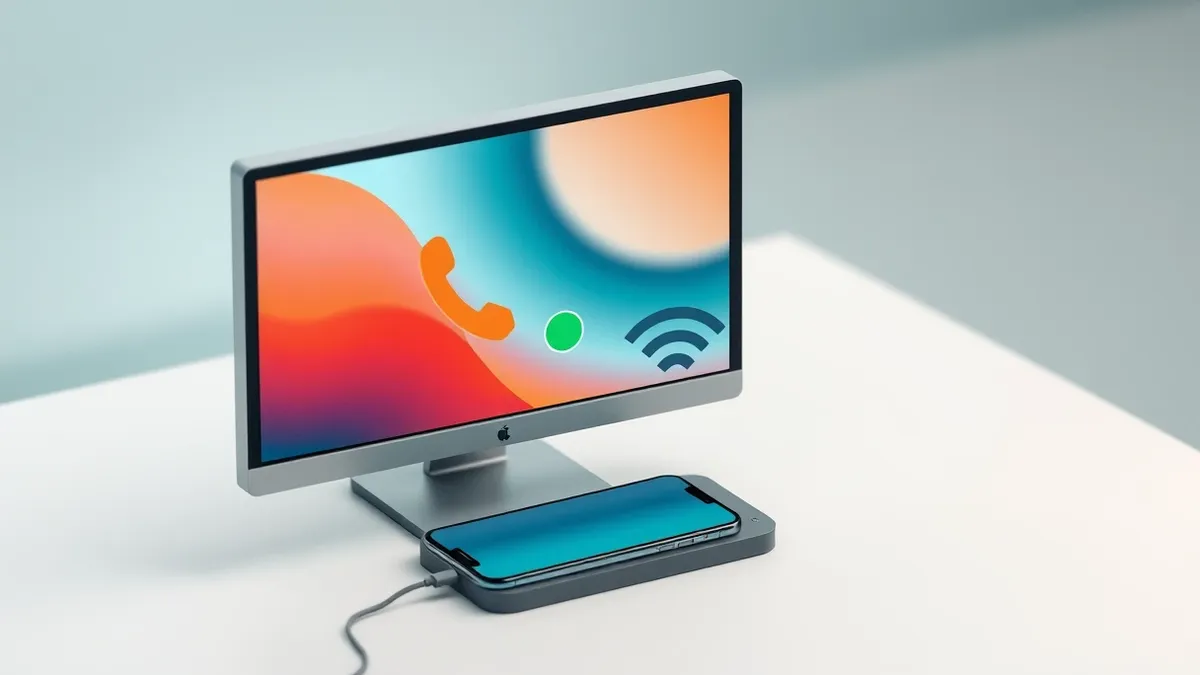
Windows 11 users can now place and receive traditional phone calls through their computers using the built-in Phone Link application.
Key points
- Phone Link allows standard cellular calls to be routed through a Windows 11 PC.
- iPhone users have limited functionality compared to Android device users.
- Bluetooth connectivity is required on both devices to enable voice calls.
Windows 11 users can now make and receive standard cellular phone calls directly from their desktop computers using the built-in Phone Link application. This feature allows users to manage calls without picking up their mobile devices, streamlining multitasking.
What happened
Microsoft’s Phone Link app, included in recent versions of Windows 11, now supports routing standard cellular calls through the PC. According to Engadget, this allows users to talk on their computer instead of their phone, which is useful for multitasking or when wearing headphones. The feature also syncs texts and notifications. iPhone functionality is more limited than Android, but both platforms can make calls.
Users must update the app via the Microsoft Store and ensure Windows is patched. Pairing involves scanning a QR code with the phone and enabling Bluetooth on both devices. For iPhone users, this requires installing the Link to Windows iOS app. Android devices pair over Wi-Fi or cellular, but Bluetooth is still mandatory for voice calls. Users must grant necessary permissions for features to work.
Why it matters
Integrating mobile telephony into desktop environments changes how users manage communication. It reduces the need to switch contexts between devices, which can improve productivity. However, it also expands the attack surface for potential eavesdropping or unauthorized access if devices are not secured. Understanding the dependency on Bluetooth and local network connections is crucial for troubleshooting connectivity issues. Users should be aware that feature parity varies significantly between operating systems.
The fix
- Update the Phone Link app via the Microsoft Store.
- Ensure Windows 11 is fully patched via Settings.
- Enable Bluetooth on both the PC and mobile device.
- Scan the QR code displayed in the app with your phone.
- Install the Link to Windows app on your iPhone or Android.
- Grant all requested permissions for full functionality.
Why it matters
Teams usually evaluate new connectivity features for their impact on workflow efficiency and security posture. Check whether your organization allows pairing personal mobile devices with work computers. Verify that Bluetooth usage policies permit this type of peripheral connection. Ensure that notification syncing does not expose sensitive data on shared screens. Review permission settings to limit data access to only what is necessary for the feature to function.
What to do and how to stay safe: Windows 11
- Update your Phone Link app to the latest version before attempting to pair.
- Ensure Bluetooth is enabled and discoverable on both your PC and phone.
- Review the permissions requested by the Link to Windows app on your mobile device.
- Verify that your Windows 11 system is fully updated via Windows Update.
Step-by-step guide: What is password policies and how they protect systems
General security guidance from the Crypt Weekly newsroom. It is not confirmed advice from the organisations named in this story.
Frequently asked questions
Can I make standard phone calls from my Windows 11 PC?
Yes, using the Phone Link app, you can make and receive standard cellular calls from your desktop.
Do I need Bluetooth to make calls with Phone Link?
Yes, Bluetooth must be enabled on both your PC and your phone to make voice calls.
Is Phone Link the same for iPhone and Android?
No, iPhone functionality is more limited compared to Android, though both can make calls.