Browser autofill stores data in local files that malware can read, while password managers encrypt your vault before it touches your hard drive.
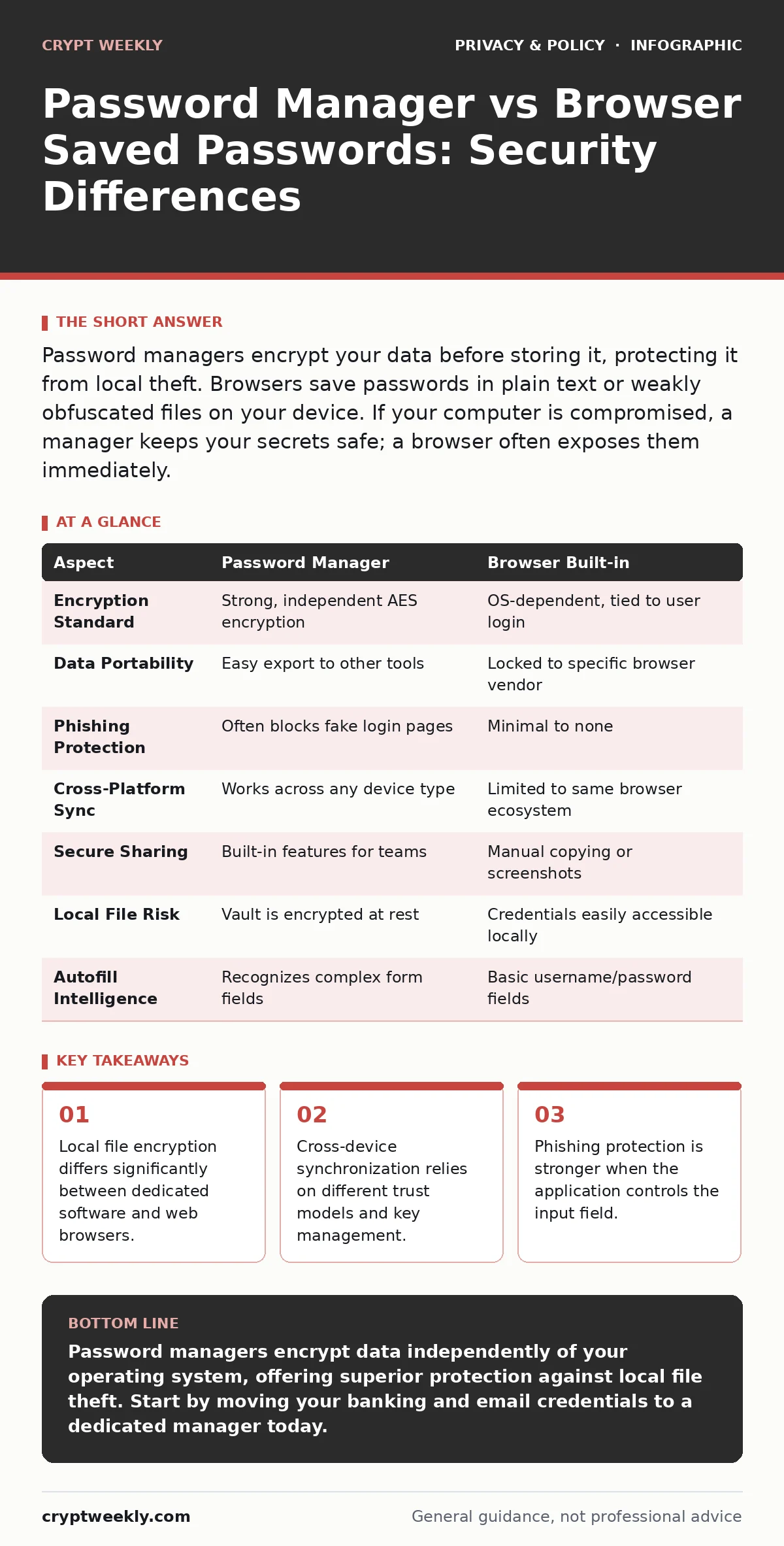
Password managers encrypt your data before storing it, protecting it from local theft. Browsers save passwords in plain text or weakly obfuscated files on your device. If your computer is compromised, a manager keeps your secrets safe; a browser often exposes them immediately.
The Storage Mechanism Difference
The core difference lies in where and how your credentials are kept. A password manager creates an encrypted vault, a single file or database that holds all your data. This vault is locked with a master key derived from your master password. Without that key, the data inside is unreadable garbage.
Browsers handle this differently. They save credentials in local profile folders. While modern browsers encrypt this data, they use the operating system’s login credentials as the encryption key. This creates a critical vulnerability: if an attacker gains access to your user account, they can decrypt the browser’s password store without needing your specific website passwords.
This distinction matters because malware often runs with your user privileges. Once inside, it can read the browser’s local files. A password manager, however, keeps the vault locked in memory only when you are actively using it, making it much harder for background processes to steal the data.
Feature Comparison Table
| Aspect | Password Manager | Browser Built-in |
|---|---|---|
| Encryption Standard | Strong, independent AES encryption | OS-dependent, tied to user login |
| Data Portability | Easy export to other tools | Locked to specific browser vendor |
| Phishing Protection | Often blocks fake login pages | Minimal to none |
| Cross-Platform Sync | Works across any device type | Limited to same browser ecosystem |
| Secure Sharing | Built-in features for teams | Manual copying or screenshots |
| Local File Risk | Vault is encrypted at rest | Credentials easily accessible locally |
| Autofill Intelligence | Recognizes complex form fields | Basic username/password fields |
When to Use a Password Manager
Choose a password manager when you value data sovereignty and security above convenience. These tools allow you to take your credentials with you if you switch computers or operating systems. You are not tied to a specific company’s ecosystem.
This is vital for managing sensitive accounts like banking or email. The encryption does not depend on your computer’s login status. Even if your laptop is stolen and the thief bypasses your screen lock, they cannot read the vault. The manager acts as a separate layer of defense, independent of the operating system’s security model.
You also benefit from features like secure sharing. You can grant temporary access to a family member or colleague without revealing the actual password. This reduces the risk of sharing credentials over insecure channels like messaging apps or email.
When Browser Saving Suffices
Browser-saved passwords are acceptable for low-risk accounts. Think of forum profiles, news site subscriptions, or throwaway accounts. The convenience of automatic filling is high, and the security cost is low for these specific use cases.
This approach works best if you use a single device and never share it. If you are the only person with access to your machine, the risk of local file theft is minimal. You also benefit from the seamless integration with the browser’s autofill engine, which handles complex forms better than some older managers.
However, this convenience comes with a hidden cost. You are trusting the browser vendor to maintain the security of your local files. If the vendor introduces a bug or changes their encryption method, your stored data may become vulnerable. You have no control over these updates.
Where the Two Overlap
Both solutions offer autofill capabilities. They both aim to reduce the friction of logging in. They both generate strong, unique passwords for new accounts. In this sense, they solve the same basic problem: human inability to remember complex strings.
The overlap ends at the security boundary. Both tools can be tricked by sophisticated phishing attacks if you are not careful. Both rely on a single master credential to protect the rest of your data. If you lose that primary key, you lose access to everything.
Neither solution protects you from keyloggers that capture your typing in real time. Both assume that your initial entry of the password is clean. This is why understanding browser fingerprinting is relevant; attackers often use browser data to identify you before attempting to steal your credentials.
See also: How to Secure Cloud Storage: Encrypt Data Before Upload
The Hidden Cost of Convenience
The main trade-off is control. With a browser, you surrender control to the vendor. If the company goes bankrupt or changes its privacy policy, your stored data may be at risk. With a password manager, you retain control. You can export your data and move to a new tool if needed.
Consider the implications of browser cookies as well. Browsers store session cookies alongside passwords. If an attacker steals both, they can hijack your active sessions. Password managers do not store session cookies, limiting the damage of a breach to credential theft only.
Managing Your Digital Keys
Think of your password manager as a digital safe. You keep the combination in your head. The safe sits on your computer, but it is locked. The browser is like a notebook on your desk. It is convenient, but anyone who enters the room can read it.
For maximum security, use a password manager for all high-value accounts. Use browser saving only for disposable services. This hybrid approach balances security with the practical realities of daily web use.
Understanding these mechanics helps you make informed choices. You are not just choosing a tool; you are choosing a threat model. Do you trust your local operating system, or do you want an independent layer of encryption?
Key takeaways
- Local file encryption differs significantly between dedicated software and web browsers.
- Cross-device synchronization relies on different trust models and key management.
- Phishing protection is stronger when the application controls the input field.
Password managers encrypt data independently of your operating system, offering superior protection against local file theft. Start by moving your banking and email credentials to a dedicated manager today.
Frequently asked questions
Can a password manager be hacked?
No software is immune to attacks, but password managers use strong encryption that makes stolen data useless without the master password. The risk is far lower than leaving passwords in plain text or weakly obfuscated browser files.
Do I need to remember one password?
Yes, you must remember one strong master password. This is the key to your entire vault. If you lose it, you lose access to all your stored credentials. There is no backdoor to recover it.
Is browser autofill safe on public Wi-Fi?
Autofill itself does not transmit data over the network, but public Wi-Fi is risky for other reasons. Use a virtual private network to encrypt your traffic, regardless of how you store passwords.
How does this relate to privacy laws?
While **privacy laws for small businesses** focus on data collection, your personal credential storage is a matter of personal security. You are responsible for protecting your own access keys, as no law can encrypt your local files for you.
How this guide was produced: written by the Crypt Weekly editorial team with AI assistance, checked against the public references listed below, and reviewed when the facts change. See our editorial policy or report an error.