
Shared vaults solve the password problem but create a single point of failure if the master key is compromised by one careless team member.
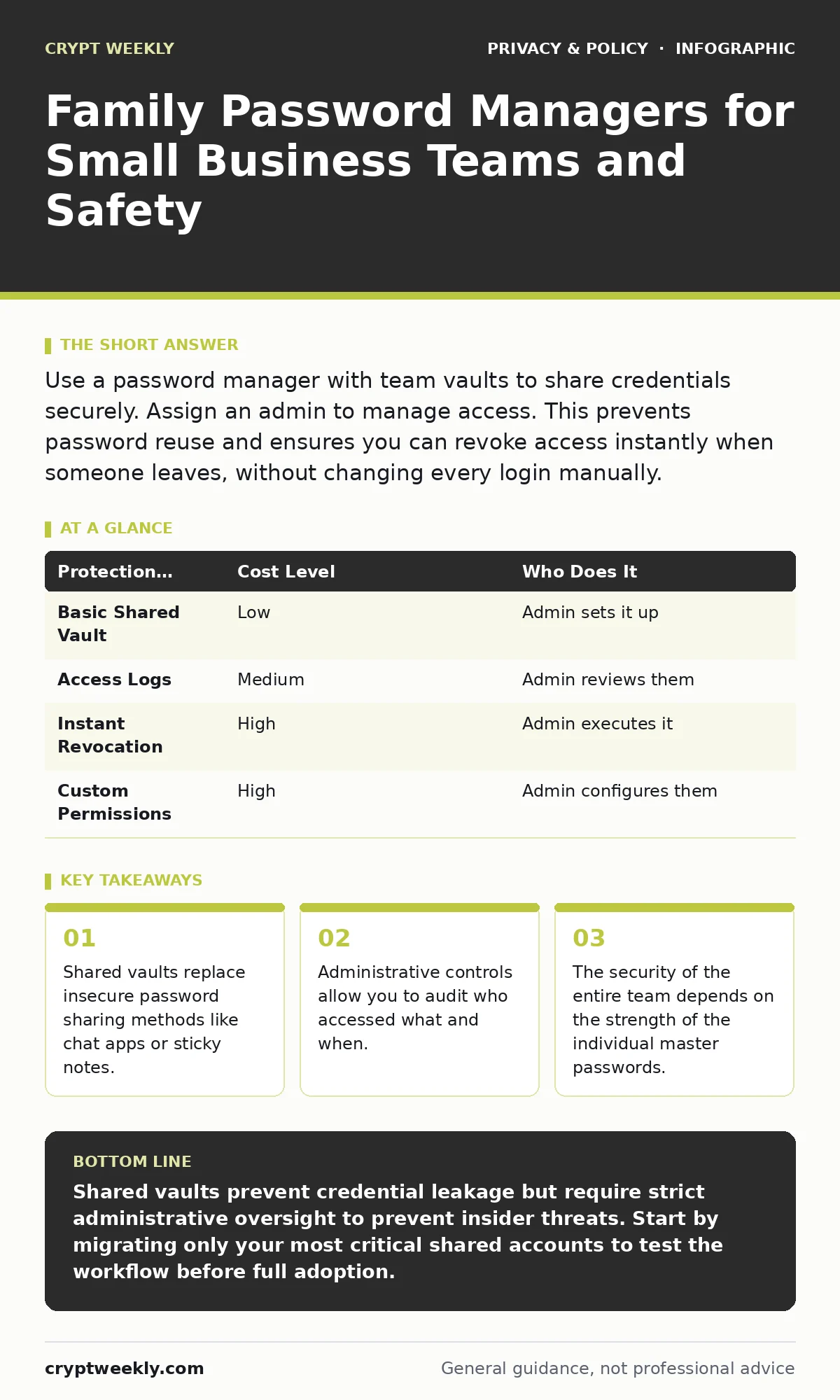
Use a password manager with team vaults to share credentials securely. Assign an admin to manage access. This prevents password reuse and ensures you can revoke access instantly when someone leaves, without changing every login manually.
The Shared Secret Problem
You face a specific risk when multiple people need access to the same accounts. The usual advice is to create unique accounts for each person. This works for email, but it fails for shared services like social media pages, cloud storage, or software licenses. You cannot have ten separate logins for a single Twitter handle.
When you cannot create unique accounts, you must share credentials. Writing them down or emailing them creates a permanent record. If that record leaks, you do not know who introduced the breach. A password manager solves this by storing the credential in an encrypted vault. You share access to the vault, not the password itself.
The mechanism here is key derivation. Your master password generates a cryptographic key that unlocks the vault. The service provider never sees your master password. They only see the encrypted blob. This means they cannot read your data even if their servers are compromised. However, this also means they cannot reset your password if you forget it. You are solely responsible for that key.
Choosing the Right Tool
You need a password manager that supports team features. Look for the ability to create separate vaults. A vault is a container for passwords, notes, and secure files. You can share a specific vault with a group of users without giving them access to your personal vault.
Cost is a factor, but not always in the way you expect. Many consumer plans allow for a few shared folders. For a small team, this might suffice. However, you lose administrative controls. You cannot see who accessed a password or revoke access instantly. Enterprise plans add these controls but cost significantly more.
Consider the trade-off between convenience and control. If you use a consumer plan, you must trust your team implicitly. If you use a business plan, you pay for the ability to verify that trust. There is no free lunch in security. Every layer of protection adds friction. Your goal is to find the minimum friction that prevents accidental exposure.
| Protection Feature | Cost Level | Who Does It |
|---|---|---|
| Basic Shared Vault | Low | Admin sets it up |
| Access Logs | Medium | Admin reviews them |
| Instant Revocation | High | Admin executes it |
| Custom Permissions | High | Admin configures them |
Delegating Authority
Do not give everyone administrative rights. An admin can view all passwords, even those in private vaults. This is a necessary evil for recovery, but it is a massive risk if the admin is malicious or careless. Limit admin rights to one or two trusted people.
Delegate vault management instead. A vault manager can add or remove users from a specific vault. They can edit passwords within that vault. They cannot see passwords in other vaults. This separates duties. The person who manages the social media passwords does not need to see the financial login.
Imagine a scenario where a marketing manager leaves. You need to revoke their access to the social media vault. If they were an admin, you would have to change the master password for the entire organization. If they were only a vault member, you remove them from that one vault. The rest of the team continues working without interruption.
This delegation model scales. As you hire more people, you create more vaults. You group users by function. Sales gets the CRM vault. Engineering gets the code repository vault. Overlap is rare and intentional. If someone needs access to two vaults, they are a member of both. Their master password protects their local view of both.
The Human Factor
Technology fails when people ignore the rules. The biggest risk in a shared system is not a hacker. It is a team member who writes their master password on a sticky note. Or worse, one who uses a simple master password because they cannot remember a complex one.
You must enforce a policy for master passwords. They should be long and unique. A passphrase of four random words is easier to remember than a complex string of characters. It is also much harder to crack. Require all team members to use a passphrase. Make it a condition of employment.
This connects to the concept of two-factor authentication for personal accounts. Even if someone steals a master password, they cannot log in without the second factor. Enable this for all admin accounts. It adds a step to the login process, but it stops the vast majority of automated attacks.
Do not assume your team will remember to use the password manager. They will try to bypass it. They will save passwords in their browser. They will reuse old passwords. You must audit this behavior. Most business plans include a security dashboard. Check it regularly. Look for warnings about weak passwords or reused credentials.
What to Share and What to Keep Private
Not everything belongs in a shared vault. Keep your personal banking, email, and medical records in your private vault. Never share these. The principle of least access applies. People should only have access to what they need to do their job.
Share work-related credentials. Social media accounts, cloud storage, software licenses, and Wi-Fi passwords belong in shared vaults. Include notes for context. If a password requires a specific question to reset, put that answer in the same entry. This prevents the "password reset" panic when someone leaves.
Be careful with biometric data. Some password managers allow you to unlock the app with your fingerprint. This is convenient, but it is not encryption. It is a local unlock mechanism. If your phone is stolen, the thief can open the app. They still need your master password to see the passwords, but they can see the list of sites. This reveals your digital footprint.
Consider mobile app permission abuse. Password managers often request access to your clipboard. This is necessary for auto-filling. However, other apps can also access the clipboard. If you copy a password and then open a different app, that app might read the clipboard. Use the password manager’s auto-fill feature instead of copy-paste when possible.
See also: Removing People-Search Data: Real Benefits and Hard Limits
Questions for Your Provider
If you hire an IT provider to set this up, you need to ask the right questions. Do not assume they understand your specific needs. Small businesses often get generic setups that do not fit their workflow.
- Can you demonstrate how to revoke access for a specific user immediately?
- How do you handle password recovery if an admin leaves the company?
- Do you provide regular reports on weak or reused passwords?
- What is the process for onboarding a new employee?
- How do you ensure the master password is not stored by your company?
The last question is critical. Your provider should never know your master password. If they do, you have no security. You have only convenience. The provider should help you set up the system, but you must hold the keys.
The Hidden Cost of Convenience
Password managers reduce friction. They make it easy to use complex, unique passwords. This is good. But it also creates a sense of false security. You might feel safe because the software is secure. This leads to complacency in other areas.
You might click on phishing links more freely. You might ignore email warnings. You might not notice when a website looks slightly different. The password manager protects your credentials, but it does not protect your judgment. You must still verify the domain you are logging into.
This ties into private browsing mode. Using private mode does not hide your activity from your employer or the website. It only prevents your local browser from saving history. Do not use it as a security tool. Use it to prevent local data leakage on shared computers.
The real cost is maintenance. You must update the vault when passwords expire. You must add new accounts. You must remove old ones. If you neglect this, the vault becomes cluttered. You lose trust in the tool. People start using it less. The cycle of insecurity begins again.
Final Steps
Start small. Create a vault for one shared account. Invite one team member. Test the process. See how it feels. Identify friction points. Fix them before scaling.
Do not try to migrate every password at once. That is overwhelming. Pick the most critical accounts first. Social media, email, and cloud storage. Get those right. Then expand.
Remember that end-to-end encryption is the standard for modern communication. Your password manager uses this to protect your data in transit and at rest. Verify that your chosen tool uses this standard. It is non-negotiable.
Key takeaways
- Shared vaults replace insecure password sharing methods like chat apps or sticky notes.
- Administrative controls allow you to audit who accessed what and when.
- The security of the entire team depends on the strength of the individual master passwords.
Shared vaults prevent credential leakage but require strict administrative oversight to prevent insider threats. Start by migrating only your most critical shared accounts to test the workflow before full adoption.
Frequently asked questions
Can I use a free password manager for my small business?
Free plans usually lack team features and audit logs. You can use them for personal use, but for business, you need the ability to manage user access and see who viewed what. This requires a paid plan.
What happens if I forget my master password?
The provider cannot reset it. You must use the recovery kit you created during setup. If you lost that kit, you lose access to all your passwords. This is why you must back up the recovery kit securely.
Do password managers protect against phishing?
They help, but they do not stop it. If you type your password into a fake site, the manager will not fill it in. This is a warning sign. However, if you manually type the password, the manager cannot stop you. You must still check the URL.
How do I handle an employee leaving?
Revoke their access to all shared vaults immediately. Change the passwords for any accounts they had sole access to. Do not wait for their last day. Do it when you know they are leaving. This prevents data theft.
How this guide was produced: written by the Crypt Weekly editorial team with AI assistance, checked against the public references listed below, and reviewed when the facts change. See our editorial policy or report an error.