Most parental controls fail because they block symptoms instead of addressing the underlying network architecture and device policies.
Start by configuring your router to filter traffic at the source. Then apply operating system restrictions on each device. Verify the settings by attempting to access blocked content. Regularly review logs to adjust rules as children mature and technology changes.
Assess the Network Topology
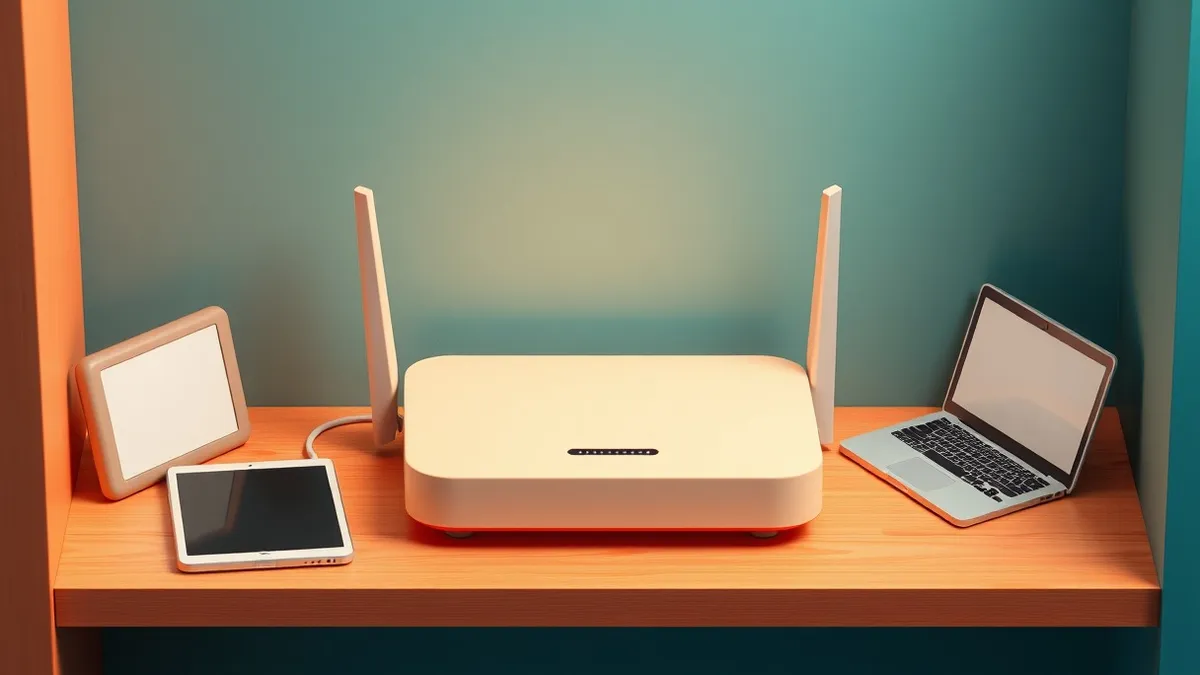
Before installing any software, you must understand how data moves in your home. Most households rely on a single wireless router that connects all devices to the internet. This device is the choke point for all traffic. If you configure controls only on a tablet or laptop, a user can switch to a different device or use a mobile data connection to bypass restrictions.
You need to identify the primary gateway. This is usually the box provided by your internet service provider. Check the label on the device for the default gateway address. This is the internal IP address you use to access the administration panel. Write this address down. You will need it to change settings that affect every device connected to your Wi-Fi.
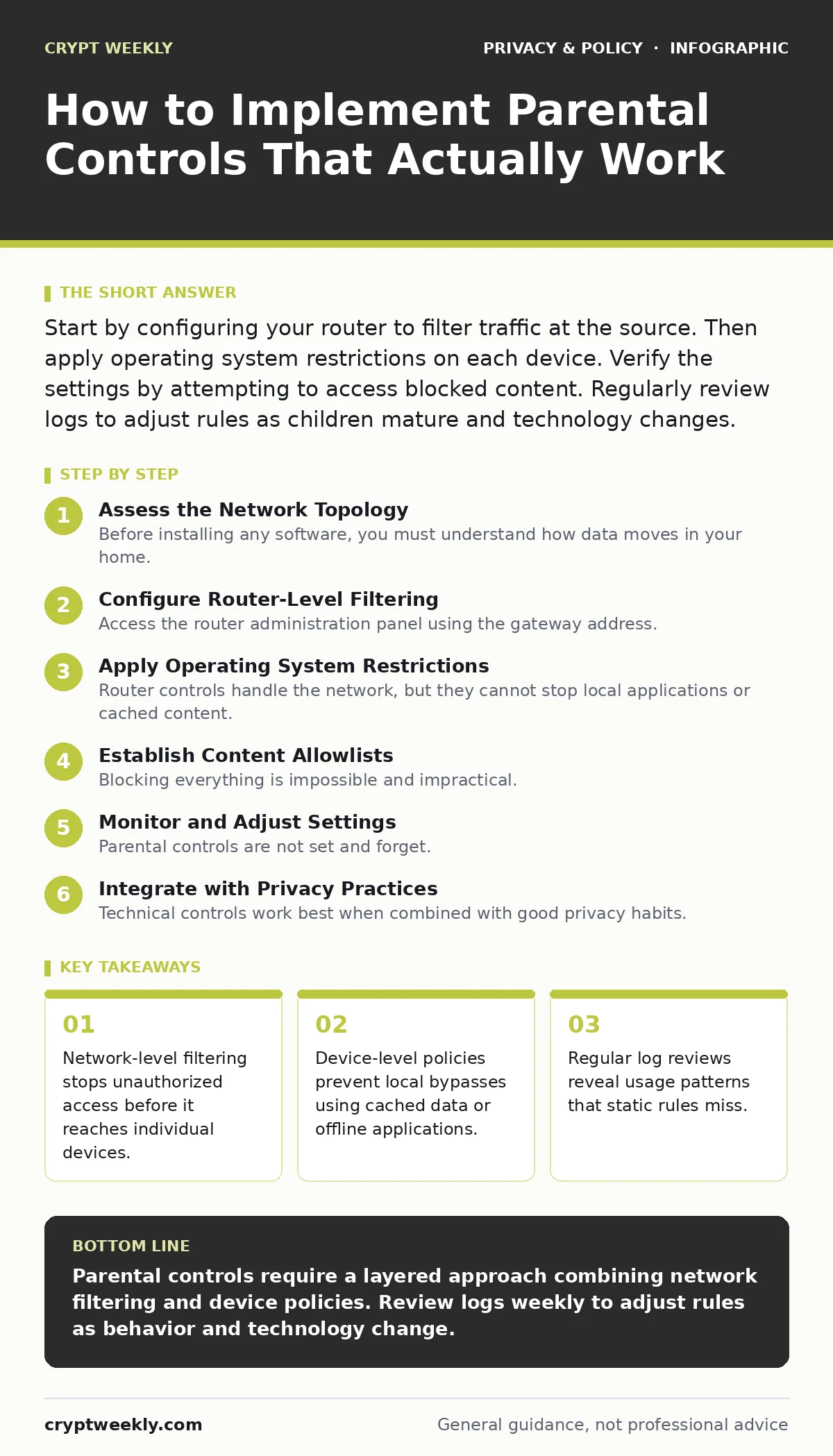
Configure Router-Level Filtering
Access the router administration panel using the gateway address. You will likely need a username and password. If you never changed these from the factory defaults, reset the router to restore security. Then, navigate to the parental controls or access control section. The exact name varies by manufacturer. Look for options like URL filtering, MAC address filtering, or time-based schedules.
MAC address filtering allows you to identify specific devices by their unique hardware identifier. You can block a specific device from accessing the internet entirely or restrict its access to certain hours. This is effective for ensuring devices are not used during sleep or study times. However, it does not filter the content of the traffic if the device is allowed online.
URL filtering blocks access to specific domains. This is useful for preventing access to known malicious or inappropriate sites. The list of blocked domains is often maintained by third-party services. These lists update automatically. You do not need to manually add every bad site. This reduces the maintenance burden significantly.
Step 1: Enable DNS Filtering
Change the DNS settings on the router to use a filtering service. DNS translates domain names into IP addresses. By using a DNS service that blocks adult or malicious content, you filter traffic at the translation layer. This works even if a user changes their browser settings. It also works on devices that do not support parental control apps, like smart TVs or gaming consoles.
To verify this worked, try accessing a known blocked domain from a device connected to the Wi-Fi. The request should fail or show a block page. If the site loads, the DNS settings did not apply correctly. Check for typos in the DNS server addresses. Some routers require you to reboot after changing DNS settings.
Apply Operating System Restrictions
Router controls handle the network, but they cannot stop local applications or cached content. You must also configure the operating system on each device. This includes laptops, tablets, and smartphones. Each OS has built-in tools for managing user accounts and application access. Do not rely on third-party apps unless the built-in tools are insufficient. Built-in tools integrate better with the system and receive security updates.
Create a standard user account for the person who needs restrictions. Do not use the administrator account. The administrator account has full control over the system. A standard account can run programs but cannot install new software or change system settings. This prevents the installation of tools that could bypass controls.
Step 2: Restrict Application Installation
On the standard account, disable the ability to install new applications. On Windows, this is done through Family Safety settings. On macOS, use Screen Time. On Android and iOS, use Family Link or Screen Time respectively. These tools allow you to approve or deny app installations. This stops users from downloading browsers or tools that might have weaker security settings.
Verify this by trying to install a new application from the official app store. The request should prompt for approval from the parent account. If it installs without approval, the restriction is not active. Check the account type. Ensure the account is set to child or standard, not admin.
Establish Content Allowlists
Blocking everything is impossible and impractical. You must define what is allowed. This is called an allowlist. An allowlist specifies the sites or apps that can be accessed. Everything else is blocked by default. This is safer than a blocklist, which tries to stop everything bad while allowing everything else. Bad actors can always find new domains to evade blocklists.
Start with the educational and entertainment sites the user needs. Add these to the allowlist. Test each one. If a site is necessary but blocked by the DNS filter, you may need to adjust the filter sensitivity or add the site to an exception list. Be careful with exceptions. Each exception is a potential hole in your defense.
Step 3: Test the Allowlist
Try to access a site that is not on the allowlist. It should be blocked. Then try to access a site that is on the allowlist. It should load normally. If the allowed site is blocked, check the URL spelling. Some filters use strict matching. A missing "www" or a different top-level domain might cause a block. Add variations to the allowlist if necessary.
Monitor and Adjust Settings
Parental controls are not set and forget. Children learn. Technology changes. New apps emerge. New tactics to bypass controls appear. You must review the settings regularly. Check the usage logs provided by the router and the operating system tools. These logs show what sites were visited and what apps were used.
Look for patterns. If a user frequently tries to access a specific blocked site, investigate why. Is it for homework? Is it a game? Adjust the rules accordingly. If a legitimate site is being blocked, add it to the allowlist. If a user is spending too much time on a specific app, consider setting time limits.
Step 4: Review Logs Weekly
Set a recurring calendar reminder to review logs. Spend ten minutes checking the activity. Look for failed access attempts. These indicate someone is trying to bypass the controls. If you see many failed attempts, your restrictions might be too tight. Loosen them slightly to reduce frustration. If you see no failed attempts, your controls might be too loose. Tighten them.
See also: tls handshake failed: why it happens and how to fix it
Integrate with Privacy Practices
Technical controls work best when combined with good privacy habits. Teach users about browser cookies. These are small files that track activity across sites. Clearing cookies regularly can prevent some tracking. However, it does not bypass parental controls. It just reduces the amount of data collected by advertisers.
Discuss encrypted email with users. Explain that while email is private, the metadata can still be visible to network administrators. This helps them understand that technical controls are not just about punishment, but about safety. It builds trust. Trust encourages users to come to you if they encounter something troubling online, rather than hiding it.
Handle Edge Cases and Exceptions
There will be times when you need to bypass controls. A user might need to access a site for a school project that is incorrectly blocked. You must have a process for this. Do not disable the controls entirely. Instead, use the override feature in the admin panel. Grant temporary access to the specific site. Log the reason for the override. This maintains the integrity of the system while allowing flexibility.
Suppose a user needs to use a device offline. Router controls do not apply to offline activity. Ensure that the device-level restrictions are still active. Check that no local copies of restricted content are stored on the device. Regularly clear cache and temporary files if the OS allows it. This ensures that old, restricted content does not remain accessible.
Verification Checklist
Use this checklist to ensure your implementation is complete.
- Router DNS filtering is active and using a reputable service.
- Standard user accounts are created for all restricted users.
- Application installation is restricted on all devices.
- Allowlists are tested and include necessary sites.
- Logs are reviewed weekly for anomalies.
- Two-factor authentication is enabled on admin accounts.
- Users are educated on privacy and the purpose of controls.
Maintain Long-Term Effectiveness
Technology evolves. New browsers, new apps, and new bypass techniques appear. Stay informed about changes in the software you use. Update your router firmware regularly. Update the operating systems on all devices. These updates often include security patches that close loopholes.
Reassess the level of control as users mature. What is appropriate for a young child may not be appropriate for a teenager. Gradually relax restrictions as trust is earned. This teaches responsibility. It also reduces the incentive to find technical workarounds. The goal is not to control forever, but to guide until independent judgment develops.
Key takeaways
- Network-level filtering stops unauthorized access before it reaches individual devices.
- Device-level policies prevent local bypasses using cached data or offline applications.
- Regular log reviews reveal usage patterns that static rules miss.
Parental controls require a layered approach combining network filtering and device policies. Review logs weekly to adjust rules as behavior and technology change.
Frequently asked questions
Can users bypass parental controls by using mobile data?
Yes, router controls only affect Wi-Fi traffic. You must apply restrictions on the device itself to cover mobile data usage.
Do parental controls slow down the internet connection?
Minimal impact. DNS filtering adds a tiny delay to the initial connection. It does not affect download speeds once the connection is established.
How do I handle a device that doesn't support parental controls?
Use MAC address filtering on the router to block the device from accessing the internet entirely or restrict its access hours.
Should I tell users what sites are blocked?
Transparency builds trust. Explain the safety reasons behind blocks. This encourages them to ask questions rather than trying to hide their activity.
How this guide was produced: written by the Crypt Weekly editorial team with AI assistance, checked against the public references listed below, and reviewed when the facts change. See our editorial policy or report an error.