
Full-disk encryption protects your data at rest but leaves it exposed while the computer is powered on, requiring separate controls for active sessions.
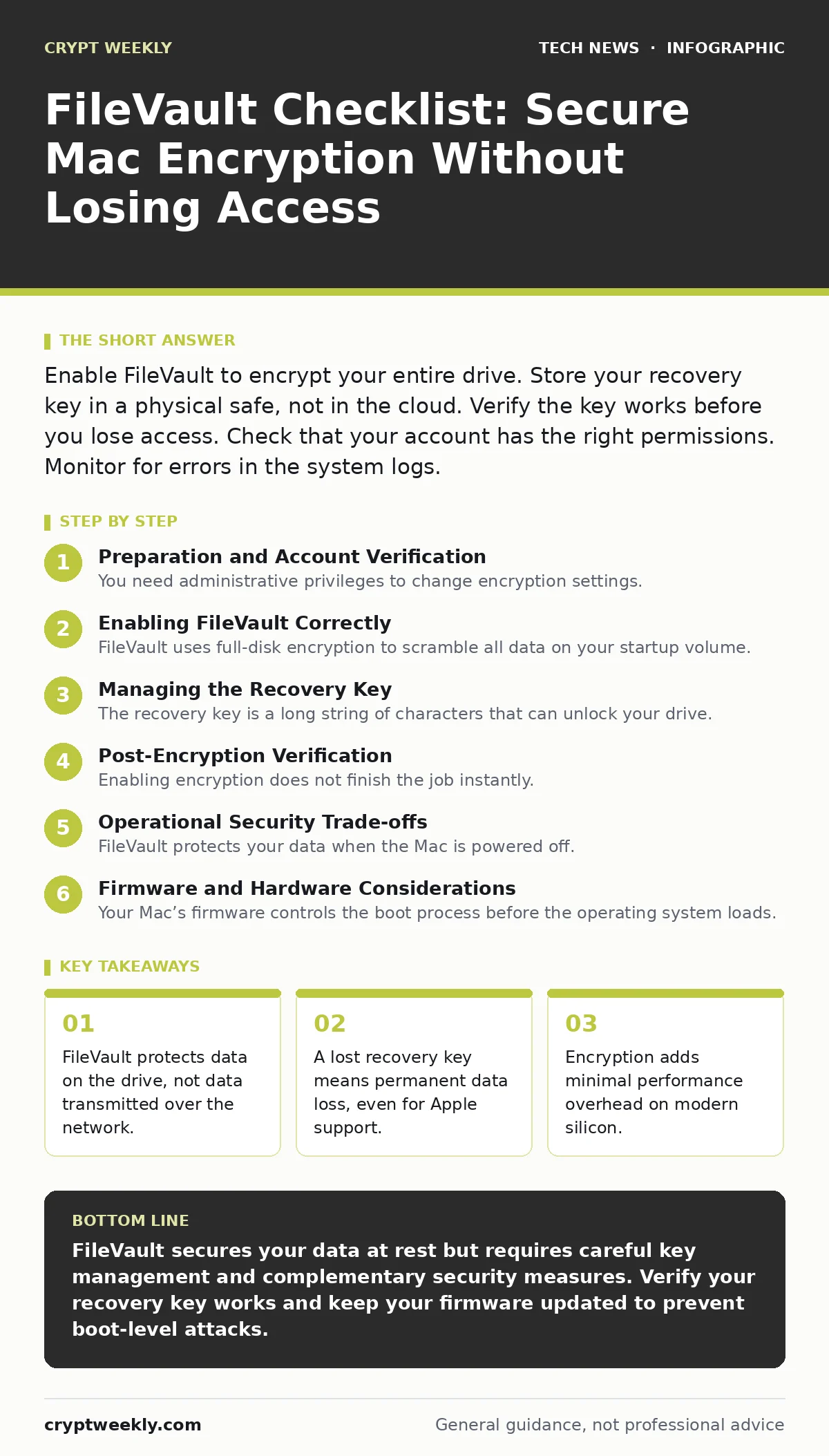
Enable FileVault to encrypt your entire drive. Store your recovery key in a physical safe, not in the cloud. Verify the key works before you lose access. Check that your account has the right permissions. Monitor for errors in the system logs.
Preparation and Account Verification
You need administrative privileges to change encryption settings. Standard user accounts cannot enable full-disk encryption. Before you begin, verify that your login account has administrator rights. This prevents you from starting the process and getting stuck at a permission error.
Check that your account is not locked out of policy changes. Some organizational environments restrict encryption settings. If you work for a company, confirm with your IT department that self-management is allowed. This avoids triggering security alerts or access revocations.
- Verify administrator status: You cannot enable encryption without root-level permissions.
- Check organizational policies: Corporate restrictions may block or override your local settings.
- Update operating system: Older versions may have known encryption bugs or performance issues.
Enabling FileVault Correctly
FileVault uses full-disk encryption to scramble all data on your startup volume. It relies on the hardware security module in your processor to manage keys. This makes the encryption fast and transparent to the user. You do not need to manage individual file permissions.
When you turn it on, the system generates a unique encryption key. It also creates a separate recovery key. You must choose how to store this recovery key. The options are usually local storage or cloud backup. Each choice carries different risks for access and privacy.
- Initiate FileVault from System Settings: Use the built-in interface to ensure correct key generation.
- Choose local key storage: Keeps the recovery key off cloud servers, reducing remote attack surface.
- Disable iCloud key backup: Prevents a cloud breach from exposing your decryption capability.
Managing the Recovery Key
The recovery key is a long string of characters that can unlock your drive. It is the only backdoor if you forget your login password. If you lose this key, your data is mathematically unrecoverable. No support team can bypass this protection.
You should test the recovery key immediately after enabling encryption. Boot from a recovery partition or external media. Attempt to unlock the drive using the paper copy. This confirms the key is valid and the paper is legible. It also verifies that the encryption process completed fully.
- Print or write down the key: Physical media is immune to digital theft or sync failures.
- Test the key in Recovery Mode: Confirms the key works before you actually need it.
- Store key separately from Mac: A fire or theft affecting both devices destroys your only access method.
Post-Encryption Verification
Enabling encryption does not finish the job instantly. The system encrypts data in the background as you use the computer. This process can take hours or days depending on drive size. You can check the progress in the settings menu. Do not assume the job is done when the toggle switches on.
Verify that the encryption status shows as complete. An interrupted process can leave data partially encrypted. This creates a mixed state where some files are protected and others are not. Check the system logs for any errors during the encryption phase.
- Confirm encryption is complete: Partial encryption leaves data vulnerable to offline attacks.
- Check system logs for errors: Errors during encryption can indicate drive health issues.
- Monitor battery usage: Encryption adds slight power draw, but significant drain suggests a bug.
Operational Security Trade-offs
FileVault protects your data when the Mac is powered off. It does not protect data while the machine is running. Once you log in, the encryption keys are in memory. Malware or an attacker with physical access can read that memory. This is why you must combine encryption with other controls.
You should also consider how your Mac connects to networks. Unencrypted data sent over Wi-Fi can be intercepted. FileVault does not protect data in transit. Use additional measures to secure your connections. See the guide on network monitoring to understand traffic visibility.
- Enable lock screen on sleep: Prevents physical access from bypassing the login prompt.
- Use short sleep timeout: Reduces the window of opportunity for an attacker to access your session.
- Review active connections: See the guide on open port management to limit exposure.
See also: What Does SOC 2 Stand For: The Real Meaning for Security Pros
Firmware and Hardware Considerations
Your Mac’s firmware controls the boot process before the operating system loads. If an attacker modifies the firmware, they can bypass FileVault entirely. They can install a bootkit that captures your password as you type it. This makes firmware integrity critical to encryption security.
Keep your firmware updated. Updates often patch vulnerabilities that allow unauthorized code execution. Check for updates regularly. See the guide on firmware maintenance for details on safe update procedures. Also, ensure your operating system hardening practices include disabling unnecessary remote login features.
- Update firmware regularly: Closes holes that allow boot-level bypasses of encryption.
- Disable remote login if unused: Reduces the attack surface for remote attackers.
- Verify boot integrity: Ensure no unauthorized startup items are running.
Key takeaways
- FileVault protects data on the drive, not data transmitted over the network.
- A lost recovery key means permanent data loss, even for Apple support.
- Encryption adds minimal performance overhead on modern silicon.
FileVault secures your data at rest but requires careful key management and complementary security measures. Verify your recovery key works and keep your firmware updated to prevent boot-level attacks.
Frequently asked questions
Can I recover my data if I lose my password and recovery key?
No, the data is permanently encrypted and cannot be decrypted without the correct keys.
Does FileVault slow down my Mac significantly?
Modern processors handle encryption in hardware, so the performance impact is negligible.
Is FileVault compatible with Time Machine backups?
Yes, Time Machine can back up encrypted drives, but you need the password to restore them.
Can I disable FileVault after enabling it?
Yes, but the process takes time to decrypt the entire drive and leaves data vulnerable during the transition.
How this guide was produced: written by the Crypt Weekly editorial team with AI assistance, checked against the public references listed below, and reviewed when the facts change. See our editorial policy or report an error.