
Most operating system hardening fails because administrators treat security as a checklist rather than a continuous reduction of attack surface and privilege scope.
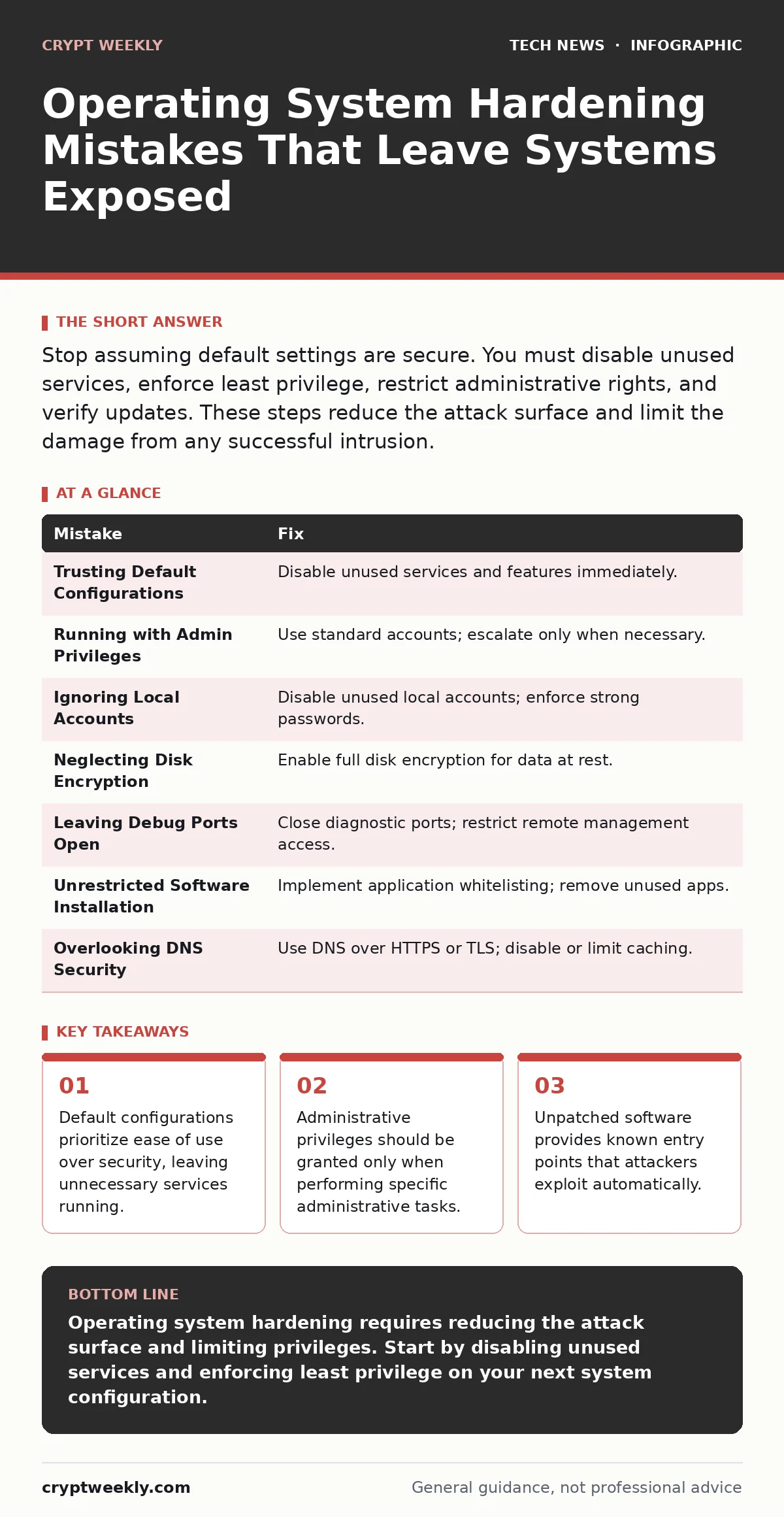
Stop assuming default settings are secure. You must disable unused services, enforce least privilege, restrict administrative rights, and verify updates. These steps reduce the attack surface and limit the damage from any successful intrusion.
Mistake 1: Trusting Default Configurations
New installations come with features enabled by default to ensure immediate usability. This convenience creates a large attack surface because every enabled service is a potential entry point. You assume the vendor has secured the box, but the vendor has only made it work.
Why it hurts:
Unused services listen on network interfaces or run with system privileges. If a vulnerability exists in a service you do not use, an attacker can still exploit it to gain access. You are defending doors you never intended to open.
The fix:
Audit the system immediately after installation. Disable any service, daemon, or feature that is not required for the specific workload. For example, a file server does not need a web server or a database engine running. Reference open port management practices to ensure only necessary ports are accessible.
Mistake 2: Running Applications with Administrative Privileges
Users and processes often run with full administrative rights to avoid permission errors. This violates the principle of least privilege, which states that a user or process should have only the minimum permissions necessary to perform its function.
Why it hurts:
If a malicious script runs in an application with administrative rights, it inherits those rights. The attacker can install rootkits, modify system files, or create new user accounts. The entire system is compromised because the boundary between the application and the operating system is dissolved.
The fix:
Create standard user accounts for daily operations. Use a separate, restricted administrative account only for configuration changes. When you need to run a specific command with elevated rights, use the operating system’s privilege escalation tool rather than logging in as an administrator. This limits the blast radius of any compromised process.
Mistake 3: Ignoring Local Account Management
Many systems rely solely on network directory services for authentication. Local accounts are often left enabled with default passwords or weak credentials. Attackers target these local accounts to bypass network-level security controls.
Why it hurts:
Local accounts exist outside the scope of centralized policy enforcement. If an attacker gains physical access or exploits a local vulnerability, they can use a default local account to escalate privileges. This bypasses the security measures you have implemented on the network perimeter.
The fix:
Disable unused local accounts. Enforce complex password policies for any active local accounts. Regularly audit local user groups to ensure no unauthorized users have been added to administrative groups. Ensure certificate management policies apply to local authentication methods where possible.
Mistake 4: Neglecting Disk Encryption
Data at rest is often overlooked in hardening strategies. Users focus on protecting data in transit using public key cryptography, assuming that the operating system handles storage security. Unencrypted disks are vulnerable to physical theft or unauthorized access.
Why it hurts:
If an attacker gains physical access to the hardware, they can remove the drive and read the data directly. They can also boot the system from external media to bypass the operating system’s login screen. The data is exposed regardless of how strong your network defenses are.
The fix:
Enable full disk encryption on all devices that store sensitive data. Use standards-based encryption tools like FileVault for macOS or BitLocker for Windows. Ensure recovery keys are stored securely and separately from the device. This protects data even if the hardware is stolen or lost.
Mistake 5: Leaving Debug and Diagnostic Ports Open
Operating systems include diagnostic ports for troubleshooting and remote management. These ports often provide extensive access to system internals. Administrators leave them open for convenience, forgetting that they are high-value targets.
Why it hurts:
Diagnostic tools often run with high privileges and may have known vulnerabilities. Attackers scan for these open ports to gain initial access. Once inside, they can disable security logging, modify configurations, or extract sensitive information. The convenience of remote debugging is not worth the security risk.
The fix:
Close all diagnostic and remote management ports that are not actively used. If remote management is required, restrict access to specific IP addresses using firewall rules. Monitor access logs for any connection attempts to these ports. See network monitoring guides for best practices on detecting unauthorized access attempts.
Mistake 6: Failing to Restrict Software Installation
Users often have the ability to install software without restriction. This leads to the accumulation of unused applications, some of which may be outdated or vulnerable. The operating system becomes a collection of unvetted software rather than a controlled environment.
Why it hurts:
Each installed application increases the attack surface. Outdated software may contain known vulnerabilities that attackers exploit. Malicious software can be installed inadvertently, bypassing security controls. The system becomes difficult to audit and secure because the baseline is constantly changing.
The fix:
Implement application whitelisting or allow-listing. Only permit the installation of approved software from trusted sources. Restrict the ability of standard users to install applications. Regularly review installed software and remove anything that is no longer needed. This keeps the system lean and secure.
Mistake 7: Overlooking DNS Security
The Domain Name System translates human-readable domain names to IP addresses. Most operating systems cache DNS responses to improve performance. Attackers exploit this caching mechanism to redirect traffic to malicious servers.
Why it hurts:
DNS cache poisoning can redirect users to fake websites that steal credentials. Even if you use secure connections, the initial connection may be redirected. The operating system trusts the cached DNS response, making it difficult for the user to detect the attack.
The fix:
Configure the operating system to use DNS over HTTPS or DNS over TLS. These protocols encrypt DNS queries, preventing interception and manipulation. Disable DNS caching where possible or use short cache time-to-live values. This ensures that DNS responses are verified and secure.
| Mistake | Fix |
|---|---|
| Trusting Default Configurations | Disable unused services and features immediately. |
| Running with Admin Privileges | Use standard accounts; escalate only when necessary. |
| Ignoring Local Accounts | Disable unused local accounts; enforce strong passwords. |
| Neglecting Disk Encryption | Enable full disk encryption for data at rest. |
| Leaving Debug Ports Open | Close diagnostic ports; restrict remote management access. |
| Unrestricted Software Installation | Implement application whitelisting; remove unused apps. |
| Overlooking DNS Security | Use DNS over HTTPS or TLS; disable or limit caching. |
Key takeaways
- Default configurations prioritize ease of use over security, leaving unnecessary services running.
- Administrative privileges should be granted only when performing specific administrative tasks.
- Unpatched software provides known entry points that attackers exploit automatically.
- Network exposure increases risk; close ports that do not serve a business function.
Operating system hardening requires reducing the attack surface and limiting privileges. Start by disabling unused services and enforcing least privilege on your next system configuration.
Frequently asked questions
How often should I review my operating system hardening settings?
Review settings after every major update or change in business requirements. Conduct a full audit at least annually.
Does hardening slow down my computer?
Minimal hardening has negligible performance impact. Disabling unused services may actually improve performance by freeing resources.
Can I automate operating system hardening?
Yes, use configuration management tools to enforce hardening standards. This ensures consistency across all systems.
What is the first step in hardening a new system?
Disable all unnecessary services and features. This immediately reduces the attack surface before any software is installed.
How this guide was produced: written by the Crypt Weekly editorial team with AI assistance, checked against the public references listed below, and reviewed when the facts change. See our editorial policy or report an error.