
Most backup failures stem from shared credentials and connected storage, not from software bugs or hardware errors.
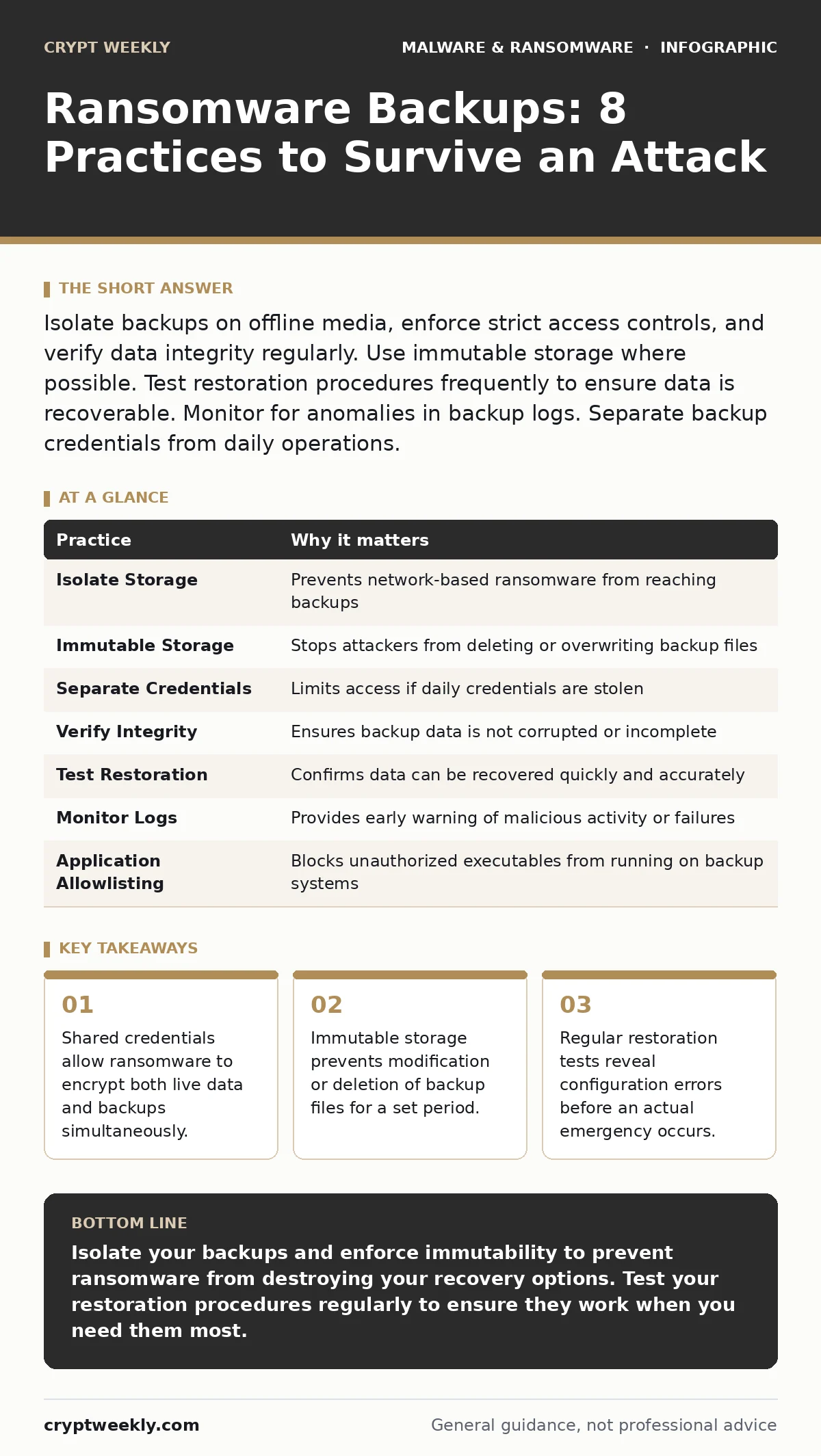
Isolate backups on offline media, enforce strict access controls, and verify data integrity regularly. Use immutable storage where possible. Test restoration procedures frequently to ensure data is recoverable. Monitor for anomalies in backup logs. Separate backup credentials from daily operations.
1. Isolate Backup Storage from the Network
Ransomware spreads by traversing network connections. If your backup server resides on the same subnet as your production systems, the malware can reach it quickly. Network segmentation limits the blast radius of an infection, but it does not stop attackers who have already compromised a system with direct network access.
Imagine a worm that scans for open shares. It finds your backup drive because it is connected to the same VLAN as your file servers. The worm encrypts the backups before you even notice the initial infection.
Use physical isolation for critical backups. Disconnect the storage device from the network after each backup cycle. This air gap ensures that no remote code execution can reach the data.
2. Enforce Immutable Storage Policies
Immutability means that data cannot be changed or deleted for a predetermined period. This feature is often called Write-Once-Read-Many (WORM). When enabled, even an administrator with full privileges cannot alter the backup files until the retention window expires.
Ransomware often attempts to delete or overwrite backups to force you into paying a ransom. Immutability breaks this attack vector. The malware may encrypt the live systems, but it cannot touch the protected backup copies.
Check if your storage platform supports native immutability or object lock. Enable this feature for all critical data sets. Note that immutability requires careful planning, as you cannot recover from a bad backup if the source was already corrupted before the lock period began.
3. Separate Backup Credentials from Daily Operations
Many organizations use a single set of administrative credentials for daily tasks and backup maintenance. This convenience is a security liability. If an attacker steals these credentials through phishing or malware, they gain access to everything, including the backup infrastructure.
Credential theft is a common precursor to ransomware deployment. Attackers move laterally by using stolen passwords to access higher-privilege accounts. They then target backup systems to eliminate your recovery options.
Create dedicated service accounts for backup processes. These accounts should have the minimum permissions necessary to write backup data. Never use these accounts for interactive logins or daily administrative tasks. Rotate these credentials frequently and store them in a secure vault.
4. Verify Data Integrity Regularly
A backup is only useful if the data can be restored. Corruption can occur silently due to hardware failures, software bugs, or network errors. If you do not verify your backups, you may discover during an incident that the data is unreadable.
Regular integrity checks compare the backup data against the original source or check for cryptographic hashes. This process identifies corrupted files before they are needed. It also validates that the backup software is functioning correctly.
Schedule automated integrity checks weekly. Review the logs for any errors or warnings. If a backup fails verification, investigate the cause immediately. Do not ignore failed checks, as they indicate a potential failure in your recovery capability.
5. Test Restoration Procedures Frequently
Having backups is not enough. You must be able to restore them quickly and accurately. Many organizations fail to test their restoration process, only to find critical gaps during an emergency. Testing reveals configuration errors, missing dependencies, and performance bottlenecks.
Restoration tests simulate a real incident. They validate that the backup data is complete and that the restore process works as expected. This includes testing the time required to restore data and the accuracy of the restored files.
Perform full restoration tests at least quarterly. Test different scenarios, such as restoring a single file, a database, or an entire system. Document the steps and time required for each scenario. Use these results to refine your ransomware recovery plans and update your procedures.
See also: 7 Mistakes That Leave You Open to Malware Droppers and Loaders · Sandboxing Misconceptions: What Static Analysis Actually Misses
6. Monitor Backup Logs for Anomalies
Backup systems generate extensive logs. These logs record every action taken by the backup software, including successful jobs, failures, and access attempts. Monitoring these logs can provide early warning signs of a compromise.
Attackers often attempt to disable backup services or delete backup jobs to cover their tracks. Unusual patterns in backup logs, such as sudden stops in backup activity or unexpected changes to backup configurations, can indicate malicious activity.
Set up alerts for critical backup events. Monitor for failed backup jobs, changes to backup schedules, and access to backup management consoles. Investigate any anomalies immediately. Integrate backup logs with your security information and event management system for centralized monitoring.
7. Use Application Allowlisting for Backup Systems
Application allowlisting restricts which programs can run on a system. Unlike antivirus software, which attempts to block known threats, allowlisting only permits trusted applications. This approach prevents unauthorized code, including ransomware, from executing on the backup server.
Backup servers often run specialized software that may not be compatible with standard security tools. Allowing only specific backup agents and management tools reduces the attack surface. Any other executable, including ransomware, will be blocked from running.
Implement allowlisting on all backup management consoles and servers. Define a strict list of allowed applications. Regularly review and update the allowlist to include necessary updates and patches. This practice provides a strong layer of defense against executable-based attacks.
8. Educate Staff on Backup Security
Human error is a significant factor in backup failures. Staff members may inadvertently disable security controls, share credentials, or fall for phishing attempts that compromise backup systems. Education reduces these risks.
Training should cover the importance of backups, proper handling of credentials, and recognition of suspicious activities. Staff should understand their role in maintaining backup integrity and security.
Conduct regular training sessions for all staff with access to backup systems. Include scenarios that highlight common mistakes and best practices. Test staff knowledge periodically to ensure they understand the procedures. Refer to guidelines on macro security settings to help staff avoid executing malicious documents that could compromise backup credentials.
| Practice | Why it matters |
|---|---|
| Isolate Storage | Prevents network-based ransomware from reaching backups |
| Immutable Storage | Stops attackers from deleting or overwriting backup files |
| Separate Credentials | Limits access if daily credentials are stolen |
| Verify Integrity | Ensures backup data is not corrupted or incomplete |
| Test Restoration | Confirms data can be recovered quickly and accurately |
| Monitor Logs | Provides early warning of malicious activity or failures |
| Application Allowlisting | Blocks unauthorized executables from running on backup systems |
| Staff Education | Reduces human error and phishing susceptibility |
Key takeaways
- Shared credentials allow ransomware to encrypt both live data and backups simultaneously.
- Immutable storage prevents modification or deletion of backup files for a set period.
- Regular restoration tests reveal configuration errors before an actual emergency occurs.
Isolate your backups and enforce immutability to prevent ransomware from destroying your recovery options. Test your restoration procedures regularly to ensure they work when you need them most.
Frequently asked questions
Can cloud backups be protected from ransomware?
Yes, by using immutable storage features and separating credentials. Ensure your cloud provider supports object lock or WORM capabilities.
How often should I test my backup restoration?
Test at least quarterly. More frequent testing is recommended for critical systems that change often.
What is the difference between immutability and encryption?
Encryption protects data from being read by unauthorized users. Immutability protects data from being changed or deleted by anyone, including administrators.
Should I use automated backups?
Yes, automated backups reduce human error. Ensure the automation includes integrity checks and log monitoring.
How this guide was produced: written by the Crypt Weekly editorial team with AI assistance, checked against the public references listed below, and reviewed when the facts change. See our editorial policy or report an error.