
Visual file properties often hide the real hash, forcing you to use command-line tools that bypass interface manipulation and reveal tampering.
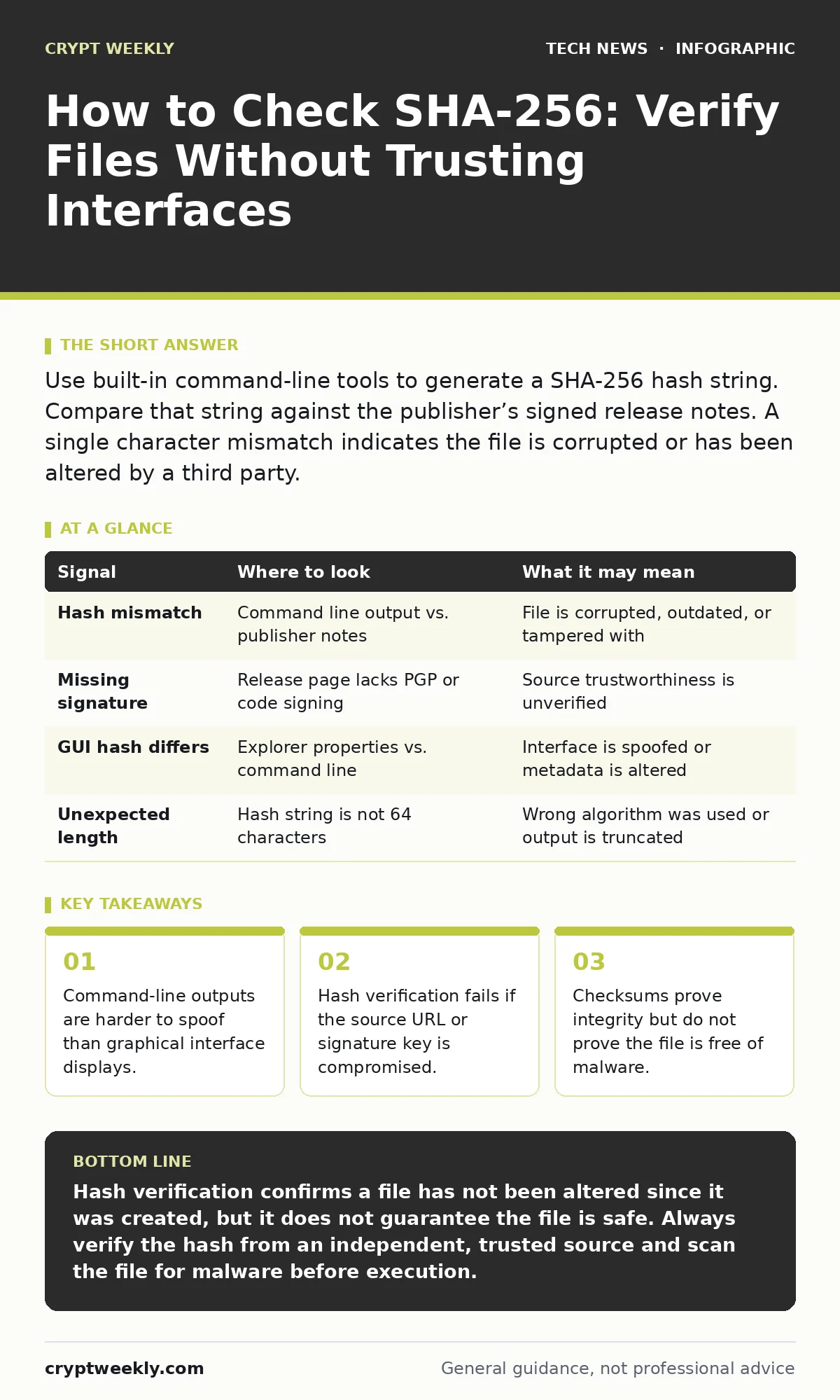
Use built-in command-line tools to generate a SHA-256 hash string. Compare that string against the publisher’s signed release notes. A single character mismatch indicates the file is corrupted or has been altered by a third party.
How to check sha 256 on Windows systems
You generate the hash directly from the command prompt to avoid interface tricks. Open Command Prompt and type certutil -hashfile path\to\file SHA256. The system returns a long string of hexadecimal characters. This string is the unique fingerprint of that specific file at that specific moment. If you change even one bit of the file, the hash changes completely.
This method bypasses the Windows Explorer properties pane. Some malware modifies the metadata displayed in the GUI while leaving the actual binary intact or swapped. By using the command line, you read the raw data directly. You must ensure you are running the command in a trusted environment. If your system is already compromised, the output could be falsified by a rootkit.
How to check sha 256 on macOS and Linux
You use the shasum or sha256sum utility in the terminal. Type shasum -a 256 filename on macOS or sha256sum filename on Linux. The terminal prints the hash followed by the filename. This process is identical across most Unix-like systems. It requires no additional software installation.
The output format may vary slightly between operating systems. macOS often includes an asterisk before the filename to indicate binary mode. Linux tools typically use a hyphen. When comparing hashes, ignore these formatting differences. Focus only on the 64-character hexadecimal string. Copy this string carefully to avoid transcription errors.
Where to look for the expected hash
You must find the original hash from a trusted source. This is rarely the same page where you downloaded the file. Attackers often compromise download servers to serve malicious files alongside fake checksums. Look for the hash in the publisher’s official release notes or a dedicated verification page.
The hash should be accompanied by a digital signature. This signature proves the person who posted the hash is who they claim to be. You verify this signature using public key cryptography. If the signature does not match the publisher’s public key, the hash itself cannot be trusted. The hash is only as good as the channel that delivered it.
What to look for in the output
You compare the two strings character by character. The hash is case-insensitive, but the comparison must be exact. A single differing character means the files are not identical. This could happen due to a corrupted download, a failed update, or intentional tampering. Do not assume a mismatch is a false positive.
Check for trailing whitespace or newlines in the copied hash. Copying from a web browser often includes invisible characters. Paste the hash into a plain text editor first. Remove any extra spaces before comparing. This prevents false mismatches that waste your time. Precision matters in this verification step.
| Signal | Where to look | What it may mean |
|---|---|---|
| Hash mismatch | Command line output vs. publisher notes | File is corrupted, outdated, or tampered with |
| Missing signature | Release page lacks PGP or code signing | Source trustworthiness is unverified |
| GUI hash differs | Explorer properties vs. command line | Interface is spoofed or metadata is altered |
| Unexpected length | Hash string is not 64 characters | Wrong algorithm was used or output is truncated |
Common blind spots in verification
You often trust the download source too implicitly. A compromised website can serve a malicious file and a matching fake hash. The hash verification will pass because the malicious file matches the malicious hash. This is known as a "hash collision" in trust, not in cryptography. The math is correct, but the source is poisoned.
Another blind spot is the update mechanism. Many applications auto-update by checking hashes. If the update server is hijacked, the application will install the malicious version automatically. You cannot check the hash manually if the process is fully automated and silent. You need to monitor the update channels for signs of compromise.
The limits of checksum verification
You must understand that a hash proves integrity, not safety. A file can have a valid hash and still contain malware. If the developer accidentally includes a backdoor, the hash will match the official release. The file is exactly what the developer sent. It is just not what you wanted.
Hash verification does not replace antivirus scanning. Use both methods. The hash ensures the file was not altered in transit. The scanner checks the file against known malicious patterns. These are complementary defenses. Relying on only one leaves you exposed to different types of threats.
Integrating checks into your workflow
You should make hash verification a habit for high-risk downloads. This includes operating system images, firmware updates, and software from unknown vendors. Automate the process where possible. Use scripts to download the file and the expected hash, then compare them automatically.
For routine software, rely on code signing. Modern operating systems check digital signatures before allowing execution. This is a form of automated hash verification. The system ensures the code has not changed since it was signed by the developer. This reduces the need for manual checks on everyday applications.
Related security practices
You should combine hash verification with other security controls. Proper certificate management ensures that the digital signatures you rely on are valid and not expired. Without valid certificates, the chain of trust breaks down. You also benefit from open port management to reduce the attack surface where these files might be deployed.
For cloud environments, consider the implications of sovereign cloud regulations. Data residency laws may affect where you can store and verify these hashes. Additionally, understanding API key security helps protect the automated scripts that perform these checks. If an attacker steals your API keys, they might alter the verification process remotely.
Key takeaways
- Command-line outputs are harder to spoof than graphical interface displays.
- Hash verification fails if the source URL or signature key is compromised.
- Checksums prove integrity but do not prove the file is free of malware.
Hash verification confirms a file has not been altered since it was created, but it does not guarantee the file is safe. Always verify the hash from an independent, trusted source and scan the file for malware before execution.
Frequently asked questions
Can I check SHA-256 without command line tools?
Some third-party tools offer graphical interfaces, but these introduce additional trust risks. Command-line tools are built into the OS and are generally more reliable for this specific task.
Why does the hash change if I edit the filename?
The hash is calculated from the file content, not the name. Changing the filename does not alter the hash. However, copying the file to a new location with a different name keeps the hash identical.
What if the publisher does not provide SHA-256 hashes?
You should avoid downloading software from publishers who do not provide verification methods. Lack of transparency suggests poor security practices. Consider finding an alternative vendor with better hygiene.
Is SHA-256 still secure against collisions?
Yes, SHA-256 is currently considered secure against collision attacks. No practical method exists to create two different files with the same SHA-256 hash. It remains the standard for integrity checks.
How this guide was produced: written by the Crypt Weekly editorial team with AI assistance, checked against the public references listed below, and reviewed when the facts change. See our editorial policy or report an error.