Silent background updates often fail silently, leaving critical rendering engines exposed to known exploits for weeks.
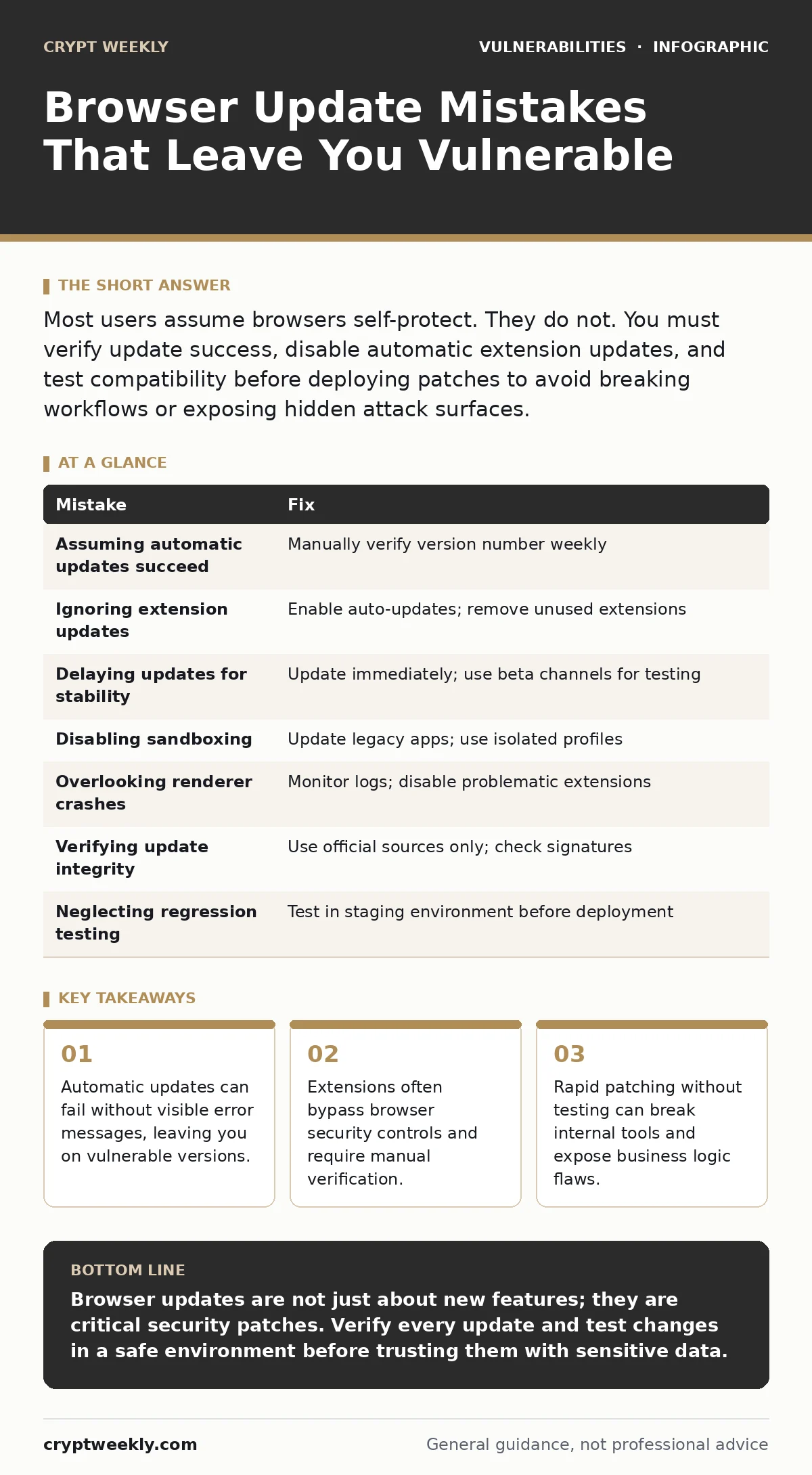
Most users assume browsers self-protect. They do not. You must verify update success, disable automatic extension updates, and test compatibility before deploying patches to avoid breaking workflows or exposing hidden attack surfaces.
Mistake 1: Assuming Automatic Updates Always Succeed
You trust the browser to update itself in the background. This assumption is dangerous. Network interruptions, permission errors, or corrupted download caches can cause the update process to abort silently. The browser may continue running on the previous version without alerting you.
Why it hurts: You remain exposed to known vulnerabilities that have public exploits. Attackers scan for specific version numbers. If your browser reports an old version, you are an easy target for drive-by attacks that exploit rendering engine bugs.
The fix: Manually check the version number at least once a week. Compare it against the latest stable release on the official website. Do not rely on status icons or tray notifications, which can be spoofed or disabled by malware.
Mistake 2: Ignoring Extension Update Cycles
Extensions run with high privileges inside the browser sandbox. Many users disable automatic updates for extensions to avoid breaking their workflow. This creates a persistent gap in your security posture. Extensions are frequent targets for supply chain attacks.
Why it hurts: A compromised extension can read your traffic, steal cookies, or inject malicious scripts into every page you visit. Unlike the browser core, extensions are not always patched simultaneously. An outdated extension can bypass modern security features like cross-origin resource sharing.
The fix: Enable automatic updates for all extensions. If an extension breaks a workflow, remove it rather than keeping it outdated. Review extension permissions regularly. If a simple tool asks for access to all your data, it is likely unnecessary.
Mistake 3: Delaying Updates for "Stability"
You wait for a week or two after a major release before updating. You want to ensure the new version is stable. This delay is counterproductive. Major browser updates often contain critical security patches for zero-day vulnerabilities.
Why it hurts: The window of exposure grows with every day you wait. Attackers distribute exploits quickly after a patch is released. By waiting for community validation, you allow attackers time to target your specific version. Stability concerns rarely outweigh the risk of active exploitation.
The fix: Update immediately when a security release is available. For non-critical features, use the browser's beta or developer channels to test new versions. This allows you to catch bugs before they reach your production environment. See patch testing for methods to validate updates without risking data.
Mistake 4: Disabling Sandboxing for Compatibility
You disable browser sandboxing to make legacy web applications work. Sandboxing isolates browser processes from the operating system. Disabling it merges these boundaries. This is a common configuration error in enterprise environments running outdated internal tools.
Why it hurts: If a website contains a buffer overflow vulnerability, the attacker can execute code with the same privileges as the browser process. Without sandboxing, this code can access your file system, modify system settings, or install keyloggers. The isolation barrier is gone.
The fix: Never disable sandboxing. Instead, update the legacy web application to use modern standards. If that is impossible, run the application in a separate, isolated browser profile or a virtual machine. This contains any potential damage to a limited environment.
Mistake 5: Overlooking Renderer Process Crashes
You ignore frequent browser crashes or renderer process failures. You assume they are just bugs. These crashes are often the result of memory corruption or logic errors. They can be indicators of underlying security weaknesses.
Why it hurts: Frequent crashes can mask active exploitation attempts. An attacker may trigger a crash to bypass security checks or to exploit a use-after-free vulnerability. Ignoring these signs prevents you from identifying compromised software or corrupted profiles.
The fix: Monitor browser crash logs. If a specific website or extension causes repeated crashes, disable it immediately. Clear your cache and cookies. If the problem persists, reinstall the browser. This resets the environment to a known good state.
See also: Prevent Browser Hijackers: Stop Search Redirections for Good · Medical Device Security Myths: 6 False Beliefs That Leave Patients Exposed
Mistake 6: Failing to Verify Update Integrity
You install browser updates from third-party download sites or unofficial mirrors. You trust these sources because they offer faster downloads or bundled software. This practice introduces significant risk.
Why it hurts: Third-party installers may include adware, spyware, or modified binaries. These modifications can strip out security features or add backdoors. You lose the guarantee that the code matches the official release. This undermines the entire update process.
The fix: Only download browser updates from the official vendor website or through the browser's built-in update mechanism. Verify digital signatures if your operating system supports it. This ensures the code has not been tampered with during distribution.
Mistake 7: Neglecting Security Regression Testing
You update browsers across an organization without testing. You assume the new version will work with existing tools. This approach often breaks internal applications that rely on specific browser behaviors or deprecated APIs.
Why it hurts: Broken tools lead to workarounds. Employees may disable security features to make tools work. They may use outdated browsers for specific tasks. This fragmentation creates inconsistent security postures and exposes the organization to known vulnerabilities.
The fix: Implement a staging environment for browser updates. Test critical internal applications before deploying updates to all users. This practice, known as security regression testing, ensures that updates do not break functionality. See security regression testing for detailed methodologies.
| Mistake | Fix |
|---|---|
| Assuming automatic updates succeed | Manually verify version number weekly |
| Ignoring extension updates | Enable auto-updates; remove unused extensions |
| Delaying updates for stability | Update immediately; use beta channels for testing |
| Disabling sandboxing | Update legacy apps; use isolated profiles |
| Overlooking renderer crashes | Monitor logs; disable problematic extensions |
| Verifying update integrity | Use official sources only; check signatures |
| Neglecting regression testing | Test in staging environment before deployment |
Key takeaways
- Automatic updates can fail without visible error messages, leaving you on vulnerable versions.
- Extensions often bypass browser security controls and require manual verification.
- Rapid patching without testing can break internal tools and expose business logic flaws.
Browser updates are not just about new features; they are critical security patches. Verify every update and test changes in a safe environment before trusting them with sensitive data.
Frequently asked questions
Do I need to restart my computer after a browser update?
Most modern browsers apply updates in the background and only require a restart of the browser itself. A full system restart is rarely necessary unless the update includes operating system components.
How do I know if my browser has been compromised?
Look for unexpected pop-ups, changes to your homepage, or new toolbars you did not install. Check your extension list for unknown items. Resetting browser settings to default can often remove minor compromises.
Are older browsers still safe for reading only?
No. Even passive reading can trigger exploits in the rendering engine. Attackers can embed malicious code in images or scripts that execute without user interaction. Always use a supported, updated browser.
Can I update my browser if I have no internet access?
You can download the installer on a connected device and transfer it via USB drive. Ensure the source device is clean. Verify the file hash if possible to ensure integrity.
How this guide was produced: written by the Crypt Weekly editorial team with AI assistance, checked against the public references listed below, and reviewed when the facts change. See our editorial policy or report an error.